Dashboard and Desktop Linking
The Dashboard is the Cloud Workspace home for a signed-in account. Use it to check whether a desktop is linked, see recent activity, and open the workspace tools that depend on a connected PC.
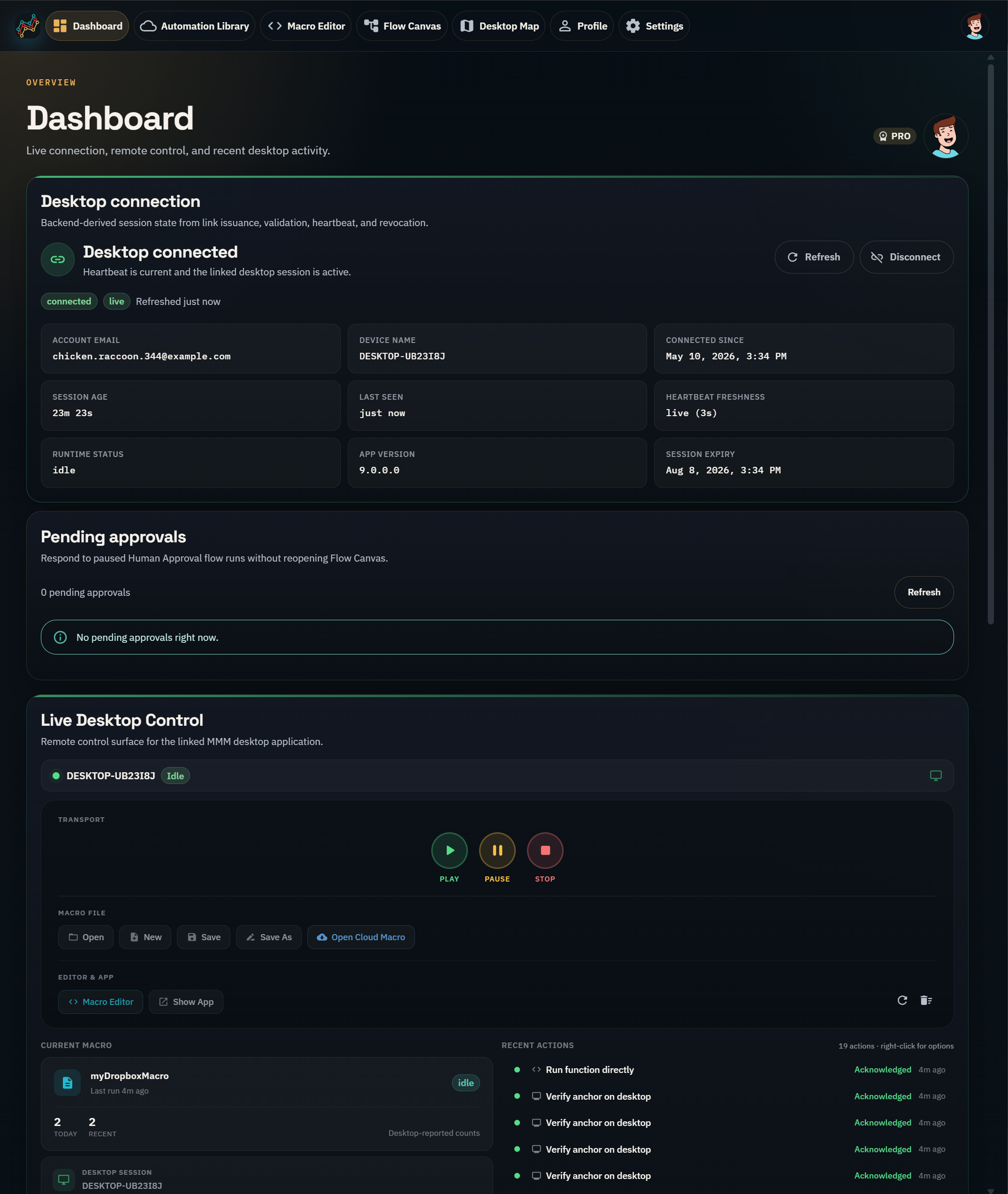
What the dashboard shows
- Current desktop connection state.
- Recent linked-desktop and workspace activity where available.
- Shortcuts to Macro Editor, Flow Canvas, Desktop Map, Profile, and related workspace areas.
- Live desktop controls where the connected desktop supports them.
The Dashboard is a status and launch surface. It does not replace the Windows desktop app. Desktop automation still runs on the linked Windows machine.
Linking a desktop
Use desktop linking when you want the website to work with the desktop app. After linking, the workspace can send supported actions to that desktop and show status back in the browser.
For linked-desktop features to work, the desktop must be:
- Running MiniMouseMacro.
- Signed in or linked to the same account.
- Online and able to reach the cloud service.
- Compatible with the action you are trying to run.
Activity and stale status
The workspace can show a desktop as stale when recent status has not arrived. That does not necessarily mean the desktop app has stopped; it means the browser no longer has a fresh enough linked-desktop signal for that session.
If status looks wrong, refresh the Dashboard, check that the desktop app is running, and confirm that the desktop is still linked to the same account.