Flow Canvas
Flow Canvas is the visual workflow builder in the Cloud Workspace. It lets you connect steps, route branches, use variables, work with Automation Library assets, and ask a linked desktop to perform supported actions.
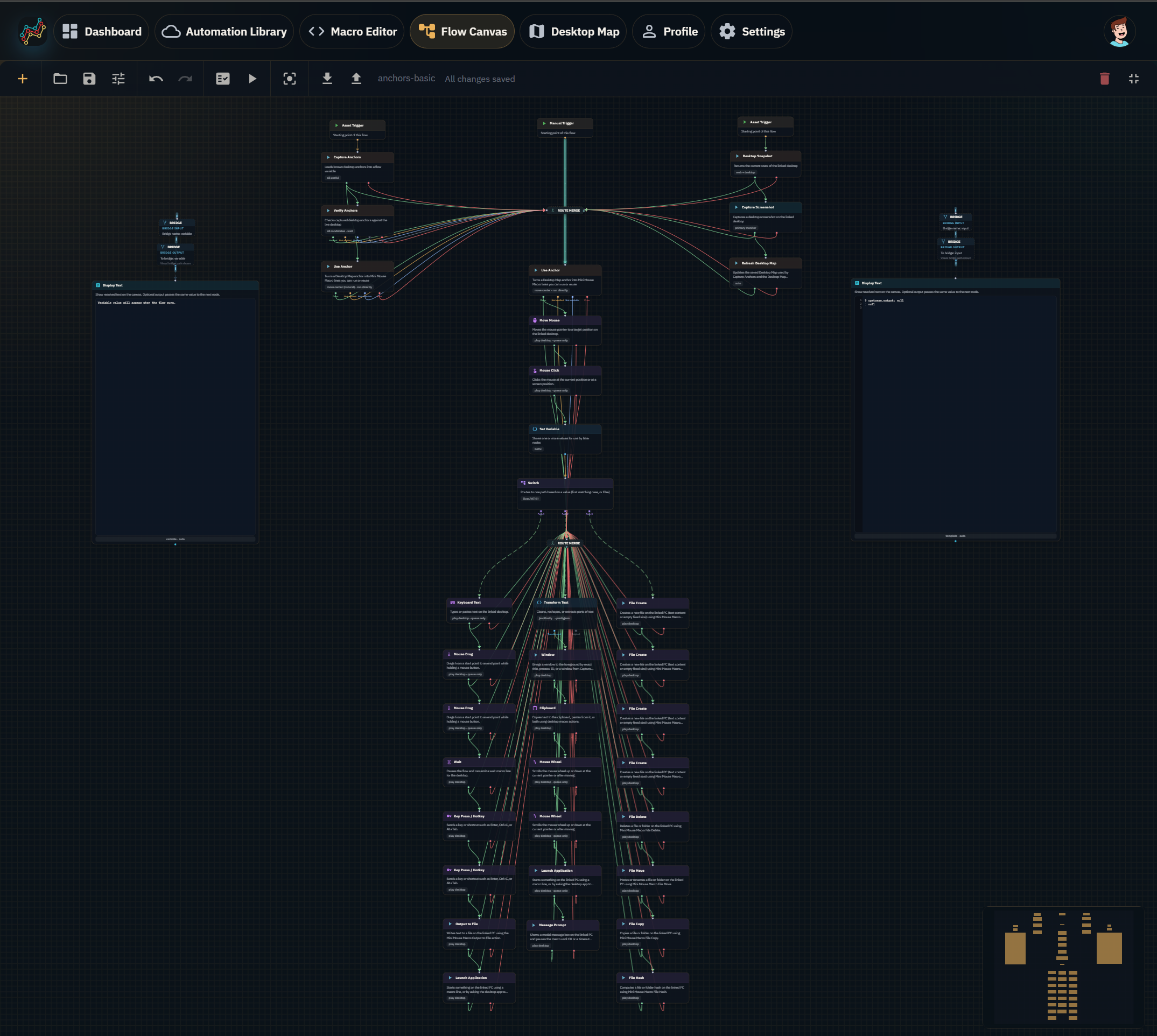
What you can build
Flow Canvas can combine browser-side and desktop-aware steps, including:
- Manual and event-style triggers.
- Data, text, condition, delay, and branching nodes.
- HTTP Request (under Data in Add Node): calls web URLs from your browser session and saves the reply for later steps. This is separate from connected Integrations such as Dropbox, Google Drive, or Supabase.
- Automation Library read and write actions.
- Desktop-aware actions such as mouse, keyboard, window, screenshot, snapshot, OCR, and condition checks where supported.
- Connected integrations such as Dropbox, Google Drive, and database-backed Supabase nodes when set up.
- Display and debugging nodes that make outputs easier to inspect.
For the full catalog, see the Flow Canvas Node Reference.
Anchor example
Anchor-driven flows can capture known desktop targets, verify them against the linked desktop, and reuse the selected target in later action steps.
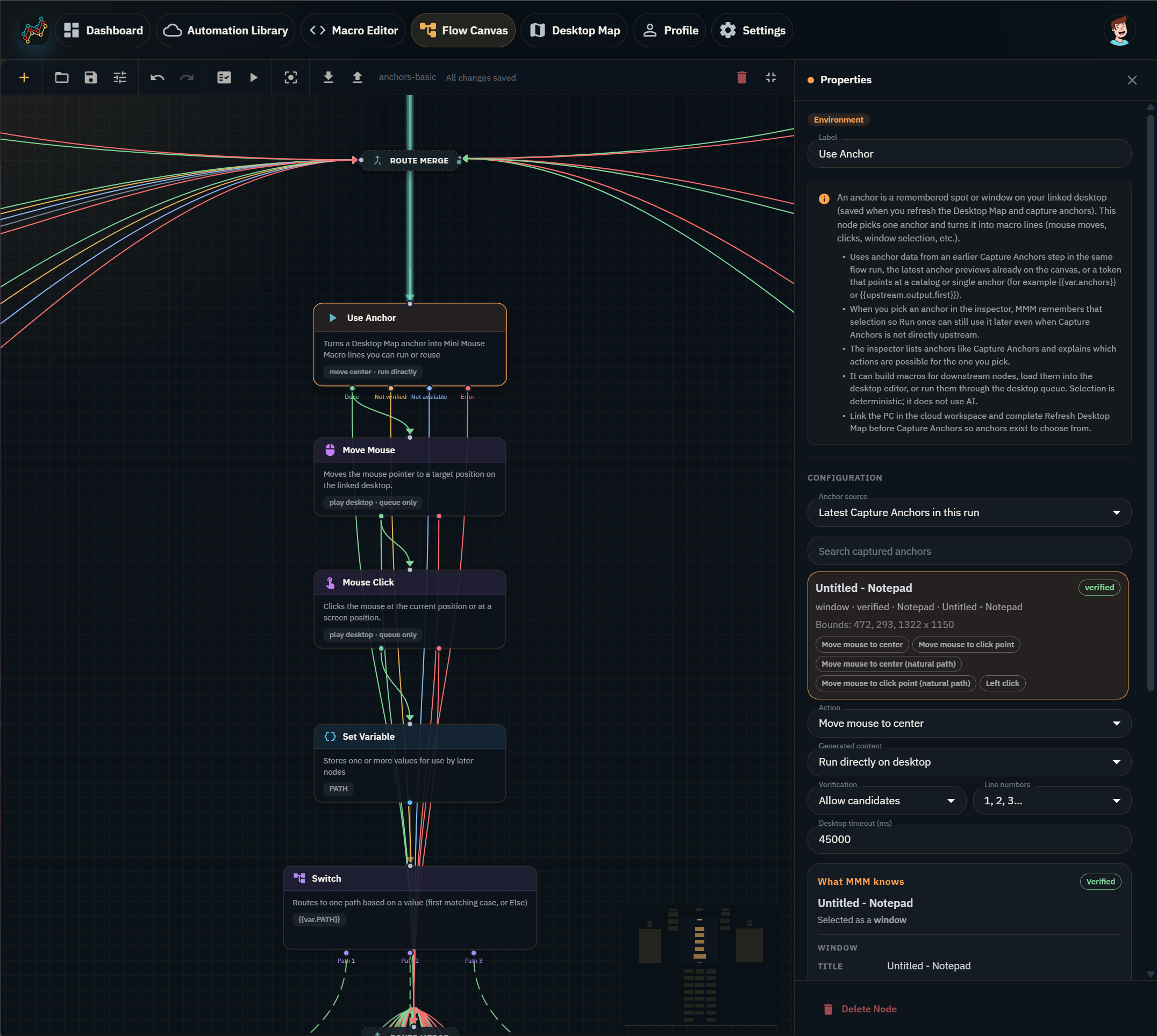
Desktop-aware flows
Flow Canvas can prepare and coordinate automation, but Windows-side actions still run on the linked desktop. Mouse, keyboard, window, screenshot, desktop condition, desktop OCR, and Desktop Map refresh actions require a linked desktop.
When building a desktop-aware flow, check that:
- The desktop is linked and online.
- The node you selected is supported by the current desktop build.
- Inputs that refer to files, screenshots, images, or anchors are available to the desktop or browser path the node uses.
- Branches such as Success, Error, True, False, Empty, or Not allowed are wired in a way that matches the outcome you expect.
Library and plan limits
Flow Canvas can save and load flow assets from Automation Library. It can also use account and quota checks in flows. If your active plan has reached a limit, save or import operations can be blocked until space is freed or the plan changes.