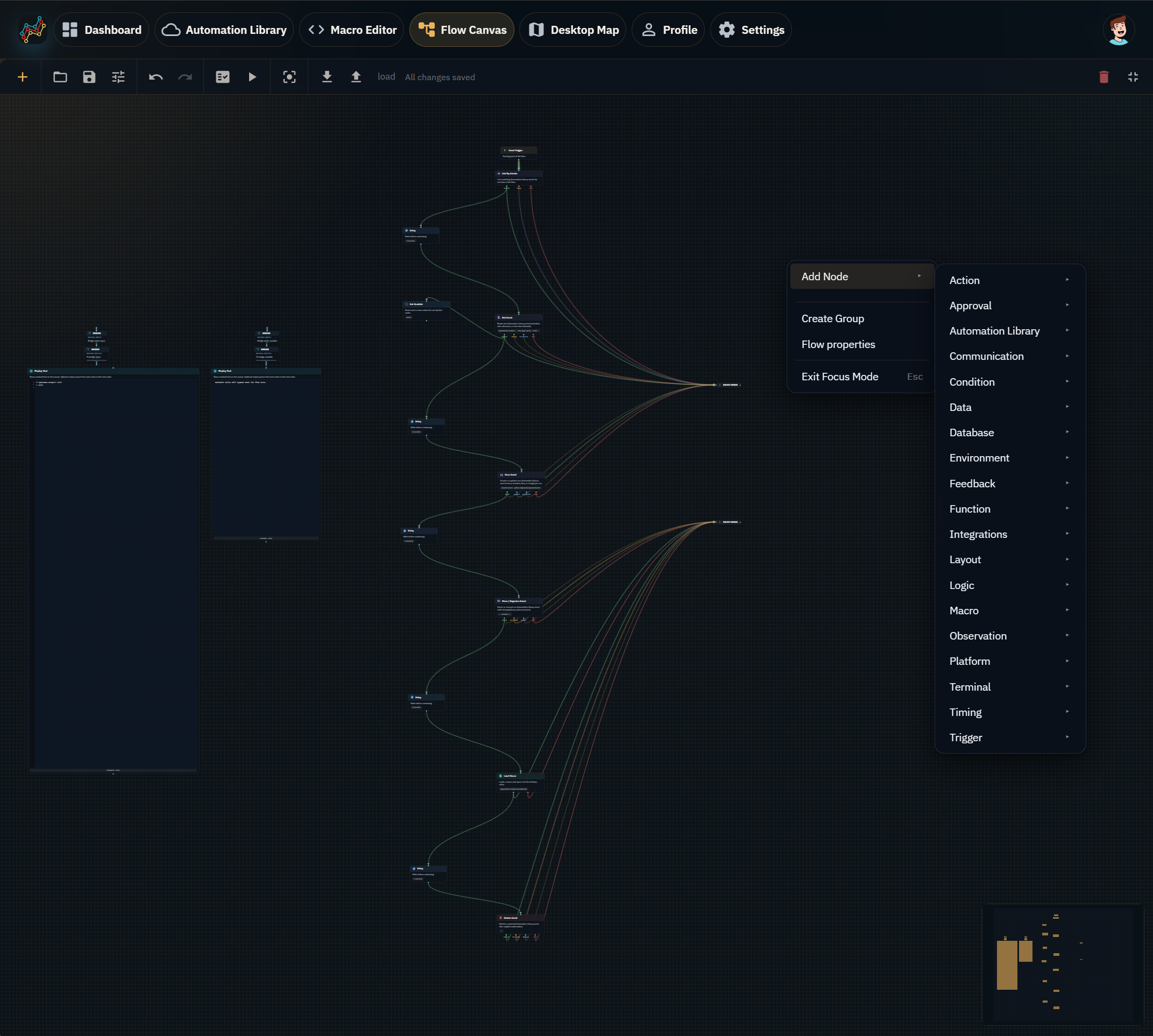
This page lists every Flow Canvas node currently exposed in the node catalog. Nodes are grouped by the same broad categories used in Flow Canvas.
Desktop-aware nodes require a linked Windows desktop when they need local mouse, keyboard, window, file, screenshot, macro playback, or desktop observation access. Browser-only and account-only nodes can run without desktop playback, but they may still require sign-in or an active workspace entitlement.
Use it as the normal starting point for a flow that you run manually from Flow Canvas.
Desktop Connected
Starts on selected desktop connection changes in this browser session.
Use it when a flow should react while the page is open to a desktop reconnecting, becoming stale, or disconnecting.
File Changed
Starts when a watched path changes on the desktop.
Use it to start a branch when the linked desktop reports a matching file or folder change.
Integrations
Node
Description
Usage
Dropbox Trigger
Starts a flow when a matching Dropbox file or folder changes.
Use it to check for matching Dropbox changes while the flow is open and start the connected branch when a match is ready.
Dropbox Folder
Lists, searches, or creates a Dropbox folder.
Use it to list, search, or create folders inside the connected MiniMouseMacro Dropbox app folder.
Dropbox File
Reads, uploads, inspects, moves, or deletes a file in your MiniMouseMacro Dropbox space.
Use it to work with Dropbox files inside the connected MiniMouseMacro Dropbox space.
Dropbox Automation Import
Imports a Dropbox automation file into your Automation Library.
Use it to copy a supported Dropbox automation file into Automation Library after slot checks pass.
Google Drive
Google Drive nodes require a connected Google Drive integration. They run on MiniMouseMacro cloud services for the signed-in account; they do not call Google from your browser directly. Only files and folders this app can use are visible to these steps.
Node
Description
Usage
Google Drive List Files
Lists one page of files and folders this app can use in your connected Drive.
Use it to find Drive files with optional search, folder filter, MIME type, and sort order. Branch Success when matches exist, Empty when none match, Not connected when Drive is not linked, or Error when the request fails.
Google Drive Download File
Reads one Drive file as metadata, text, or a structured file reference.
Use it after List or Upload when you need file details or readable text. Branch Downloaded, Missing, Not connected, or Error. File targets accept a Drive id or exact file name; use Inside folder when names are ambiguous.
Google Drive Upload File
Uploads or replaces a file in your connected Drive (about 2 MB per run).
Use it to save text, a variable, upstream output, or an Automation Library asset to Drive. Choose default app location, a folder id or name, or output from a previous Create Folder or List step. Branch Uploaded, Updated, Not connected, or Error.
Google Drive Delete File
Permanently deletes one file this app can use.
Use it to remove a file by Drive id or exact file name. Branch Deleted, Missing, Not connected, or Error.
Google Drive Create Folder
Creates a folder in your connected Drive.
Use it before Upload or List when you need a new folder. Optional parent folder id or name. Branch Created, Not connected, or Error.
Google Drive Move/Rename File
Moves a file to another folder, renames it, or both.
Use it to change a file name, parent folder, or both in one step. Provide at least a new name or destination folder. Branch Moved, Missing, Not connected, or Error.
Function
Node
Description
Usage
Function Execute
Runs a saved function or pasted macro steps on the linked MiniMouseMacro desktop.
Use it to run a saved function or pasted macro steps on the linked desktop, or to build the function output for later steps.
Action
Node
Description
Usage
Move Mouse
Moves the mouse pointer to a target position on the linked desktop.
Use it when the flow needs to move the pointer to a coordinate, token-derived position, or supported anchor target.
Mouse Click
Clicks the mouse at the current position or at a screen position.
Use it to click at the current pointer position or at a configured desktop coordinate.
Mouse Drag
Drags from a start point to an end point while holding a mouse button.
Use it to drag between two desktop points, including token-derived coordinates when available.
Keyboard Text
Types or pastes text on the linked desktop.
Use it to type or paste resolved text into the active desktop application.
Key Press / Hotkey
Sends a key or shortcut such as Enter, Ctrl+C, or Alt+Tab.
Use it to send a single key or keyboard shortcut.
Wait
Pauses the flow and can emit a wait macro line for the desktop.
Use it to pause an action sequence or emit a MiniMouseMacro wait line for desktop playback.
Clipboard
Copies text to the clipboard, pastes from it, or both using desktop macro actions.
Use it to set clipboard text, paste clipboard text, or do both as part of a desktop action sequence.
Mouse Wheel
Scrolls the mouse wheel up or down at the current pointer or after moving.
Use it to scroll up or down, optionally after moving the pointer first.
Window
Brings a window to the foreground by exact title, process ID, or a window from Capture Anchors.
Use it to bring a known window forward before later mouse, keyboard, or screenshot steps.
Launch Application
Starts something on the linked PC using a macro line, or by asking the desktop app to open a path or link.
Use it to start a local application, file, folder, or link on the linked desktop.
Output to File
Writes text to a file on the linked PC using the MiniMouseMacro Output to File action.
Use it to write resolved text to a file path on the linked desktop.
File Copy
Copies a file or folder on the linked PC using MiniMouseMacro File Copy.
Use it to copy a file or folder on the linked desktop.
File Move
Moves or renames a file or folder on the linked PC using MiniMouseMacro File Move.
Use it to move or rename a file or folder on the linked desktop.
File Delete
Deletes a file or folder on the linked PC using MiniMouseMacro File Delete.
Use it to delete a file or folder on the linked desktop when that is the intended automation result.
File Create
Creates a new file on the linked PC using MiniMouseMacro File Create.
Use it to create a text file, empty file, or fixed-size file on the linked desktop.
File Hash
Computes a file or folder hash on the linked PC using MiniMouseMacro File Hash.
Use it to calculate a hash for a file or folder on the linked desktop and pass the result onward.
Message Prompt
Shows a modal message box on the linked PC and pauses the macro until OK or a timeout.
Use it to show an OK-style message on the linked desktop and wait for OK or the configured timeout.
Macro
Node
Description
Usage
Load Macro
Loads a macro and syncs it to the desktop editor.
Use it to load macro content from a library source or configured source so later macro nodes can validate or play it.
Validate Macro
Checks macro syntax and structure.
Use it to check macro text before playback and route validation success or failure.
Play Macro
Sends the loaded macro to your desktop to run.
Use it to ask the linked desktop to play the loaded or configured macro content.
Pause Macro
Sends a pause command to the running macro.
Use it to pause a running desktop macro when the linked desktop supports that action.
Stop Macro
Sends a stop command to the running macro.
Use it to stop a running desktop macro when the linked desktop supports that action.
Logic
Node
Description
Usage
Condition
Branches the flow based on a check.
Use it when a flow should choose between Success and Failure based on one configured check.
Switch
Routes to one path based on a value.
Use it when one value should route to one of several named paths, with Else as the fallback path.
Retry
Runs the previous step again until it passes or you run out of tries.
Use it to rerun the previous step until it succeeds or the retry limit is reached.
Timeout
Sends the flow down Timed Out if it reaches here after the allowed time.
Use it to route a path as timed out when it reaches this node after the allowed time.
Wait For
Waits for a real desktop condition like a file, app, window, or text.
Use it to wait for a real desktop condition before continuing.
Condition
Node
Description
Usage
Check Desktop Condition
Runs one desktop condition check, then branches True, False, or Error.
Use it when the linked desktop should evaluate one MiniMouseMacro condition and route True, False, or Error.
Approval
Node
Description
Usage
Human Approval
Pauses the run until a person responds.
Use it when a flow should pause and wait for a person to approve, reject, or choose another configured response.
Timing
Node
Description
Usage
Delay
Waits before continuing.
Use it to wait for a fixed amount of time before the next node runs.
Feedback
Node
Description
Usage
Log
Writes a message to the execution log.
Use it to record a resolved message in the run log for debugging or audit-style notes.
Notify
Shows a notification popup.
Use it to show a simple in-app notification during a run.
Communication
Node
Description
Usage
Web Notification
Pushes a system notification via the site service worker.
Use it to send a browser or system notification after the user has granted notification permission.
Text To Speech
Speaks text through MMM desktop speakers or browser audio, with optional reusable cached assets.
Use it to speak resolved text through desktop speakers or browser audio, or save reusable cached audio where allowed.
Layout
Node
Description
Usage
Note
Text annotation with optional image embed.
Use it to annotate a flow without changing execution.
Group
Visual group container for organizing nodes.
Use it to visually group related nodes on the canvas without changing execution.
Route Merge
Many paths in, one path out.
Use it to bring several branches back to one continuation point.
Bridge
Jumps across the canvas without long connectors.
Use it to move execution across a large canvas without drawing a long visible connector.
Environment
Node
Description
Usage
Desktop State
Routes based on current desktop connection.
Use it to route based on whether the linked desktop is connected, stale, or disconnected.
Desktop Snapshot
Returns the current state of the linked desktop.
Use it to capture current desktop state for later Flow Canvas or Desktop Map steps.
Refresh Desktop Map
Updates the saved Desktop Map used by Capture Anchors and the Desktop Map workspace.
Use it after screenshot or snapshot steps to update the saved Desktop Map with selected observation data.
Capture Anchors
Loads known desktop anchors into a flow variable.
Use it to load known Desktop Map anchors into a flow variable for matching, verification, or action steps.
Use Anchor
Turns a Desktop Map anchor into MiniMouseMacro lines you can run or reuse.
Use it to turn a selected anchor into desktop macro lines or run an anchor-based action.
Verify Anchors
Checks captured desktop anchors against the live desktop.
Use it to check captured anchor candidates against the live linked desktop before using them.
Desktop Action Dispatch
Sends one supported desktop action to the linked PC.
Use it for an advanced direct desktop action when the friendly node for that action is not enough.
Terminal
Node
Description
Usage
End Flow
Ends this path cleanly here.
Use it to stop a branch cleanly after the intended work is done.
Fail Flow
Ends this path as unsuccessful.
Use it to stop a branch and mark it unsuccessful with a clear reason.
Observation
Node
Description
Usage
Capture Screenshot
Captures a desktop screenshot on the linked desktop.
Use it to capture a screenshot from the linked desktop for display, OCR, image matching, or Desktop Map refresh.
Load / Enrich Image
Loads an image from a selected source and enriches it with stable metadata for downstream image processing.
Use it to load an image from a supported source and prepare stable image metadata for later image steps.
Display Image
Displays an image from an upstream node.
Use it to show an upstream or resolved image directly on the canvas.
Save Image
Saves an image to your image library.
Use it to save a resolved image into the image library during a non-interactive run.
Display Text
Shows resolved text on the canvas. Optional output passes the same value to the next node.
Use it to show resolved text on the canvas and optionally pass that same text onward.
Read Text From Image
Reads visible text from an upstream image, saved image variable, or direct image URL.
Use it to extract visible text from a resolved image using the selected web/cloud or desktop path.
Find Image In Image
Finds whether one image appears inside another image and returns the best match location, confidence, and click-ready coordinates.
Use it to find whether a smaller image appears inside a larger image and return match coordinates.
Data
Node
Description
Usage
HTTP Request
Calls a web address when the flow runs and stores the reply for later steps.
Use it to GET or POST (and other allowed methods) to a service that allows this Mini Mouse Macro page to receive an answer in the browser. Branch Success when the site returns a normal OK-style result; branch Error for other result codes, timeouts, or when the browser cannot complete the call. The URL, headers, and body can include flow tokens. This step does not run on our servers; some addresses only work on their own site.
Set Variable
Stores one or more values for use by later nodes.
Use it to create or update one or more flow variables for later nodes.
Check If
Sends the flow down a Yes or No path after comparing two values.
Use it to compare two values and route down Yes or No.
Transform Text
Cleans, reshapes, or extracts parts of text.
Use it to clean, reshape, extract, or pipeline text transformations before later steps.
JSON Data
Reads, updates, reshapes, or loops through structured JSON data.
Use it to work with JSON from a variable, previous output, pasted value, or template.
Increment Counter
Adds, subtracts, or changes a numeric variable.
Use it to add to, subtract from, or reset a numeric counter variable.
Automation Library
Node
Description
Usage
List Assets
Lists matching Automation Library assets for use later in the flow.
Use it to find matching Automation Library assets and pass the result list to later nodes.
Get Asset
Reads one Automation Library asset.
Use it to read one Automation Library asset by id or path for later use in a flow.
Save Asset
Creates or updates one Automation Library asset per run.
Use it to create or update one supported Automation Library asset during a run.
Delete Asset
Deletes a selected Automation Library asset after explicit confirmation.
Use it to delete a selected Automation Library asset after explicit setup.
Move / Organize Asset
Moves or renames an Automation Library asset while keeping library data consistent.
Use it to move or rename one Automation Library asset while keeping the library view consistent.
Database
Node
Description
Usage
Database Query
Reads rows from a Supabase table.
Use it to read rows from a connected Supabase table with filters, sorting, and row limits.
Lookup Row
Finds a single matching row from Supabase.
Use it to find one matching Supabase row and branch when it is present or missing.
Insert Row
Inserts one row into a Supabase table.
Use it to insert one row into a connected Supabase table.
Update Row
Updates matching rows in a Supabase table.
Use it to update matching rows in a connected Supabase table.
Delete Row
Deletes matching rows from a Supabase table.
Use it to delete matching rows from a connected Supabase table.
Platform
Node
Description
Usage
Get Account Info
Returns safe account and plan details for the signed-in user.
Use it to read safe account and plan details for the signed-in user.
Check Plan / Feature Gate
Checks whether the current account can use a selected feature, or evaluates every catalog feature at once.
Use it to check whether the current account can use a selected feature or feature group.
Get Usage / Quota
Returns current usage and remaining limits for selected account features.
Use it to read current usage and remaining limits for selected workspace features.